
Convert JPG to WebP in the Online PS Editor
Open a JPG or JPEG in Hifer’s online PS editor, choose WebP export settings and check the saved image.
1
Open the JPG
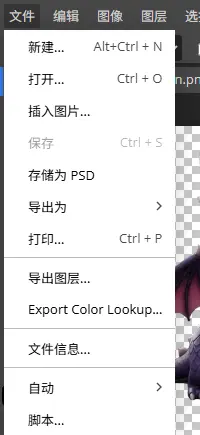
In the online PS editor, choose File → Open and select your .jpg or .jpeg file. Check that the intended photo appears on the canvas.
2
Set dimensions and quality
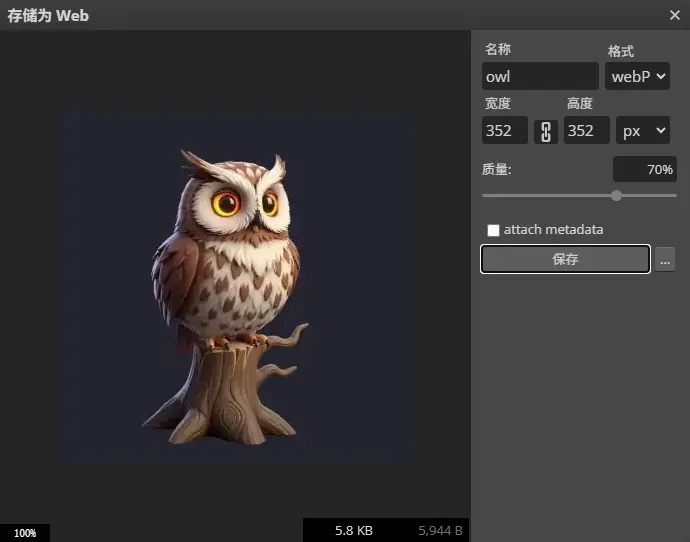
Choose File → Export As → WebP. In the export dialog, set the width and height or keep the original dimensions. Adjust quality while checking the preview and estimated file size, then click Save.
3
Check the saved WebP
Open the .webp file and compare its pixel dimensions, fine details and file size with the source. File size depends on image content, dimensions and quality. If needed, adjust the settings and export again.